

Instruktioner för digital stämpling
Denna tur använder digital stämpling, där du kan stämpla på kontroller direkt i mobilen. För att stämpla behöver du bara en mobiltelefon med GPS och webbläsare.
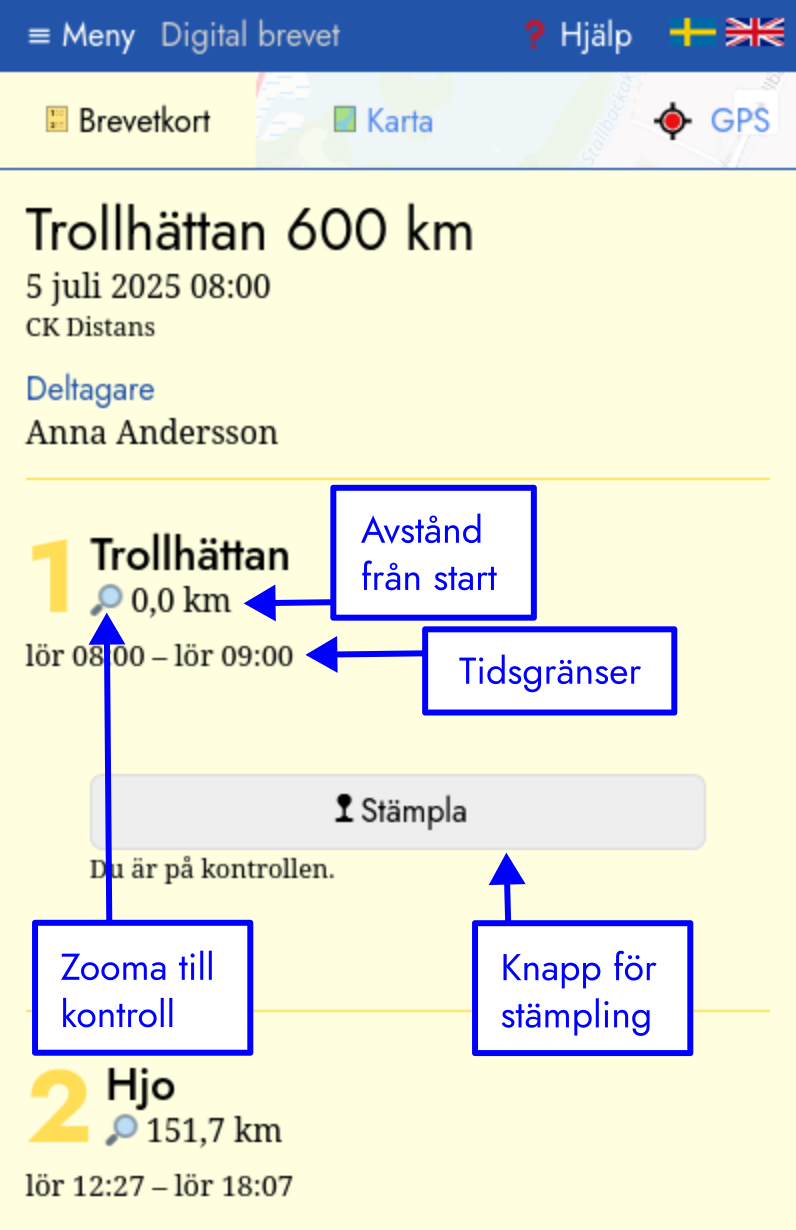
Hur hittar jag mitt brevetkort?
En länk till ditt digitala brevetkort skickas per e-post när du registrerar dig på en tur. Om du använder länken behöver du inte logga in. Du kan också logga in på denna sida, välja en tur du är anmäld till och välja knappen "Brevetkort".
Prova gärna att öppna länken i god tid innan turen börjar.
Hur stämplar jag?
Öppna länken till ditt digitala brevetkort. När du får fråga om att dela din plats ska du svara ja.
Vid varje obligatorisk kontroll - vilket ofta inkluderar start på turen - stämplar du. Öppna ditt digitala brevetkort, och bläddra till den kontroll du vill stämpla på. När appen fått tag i en aktuell GPS-position kommer knappen "Stämpla" vara aktiv för den kontroll du är på. Tryck på "Stämpla". När du stämplingen är registrerad får du en stämpel i brevetkortet.
Karta
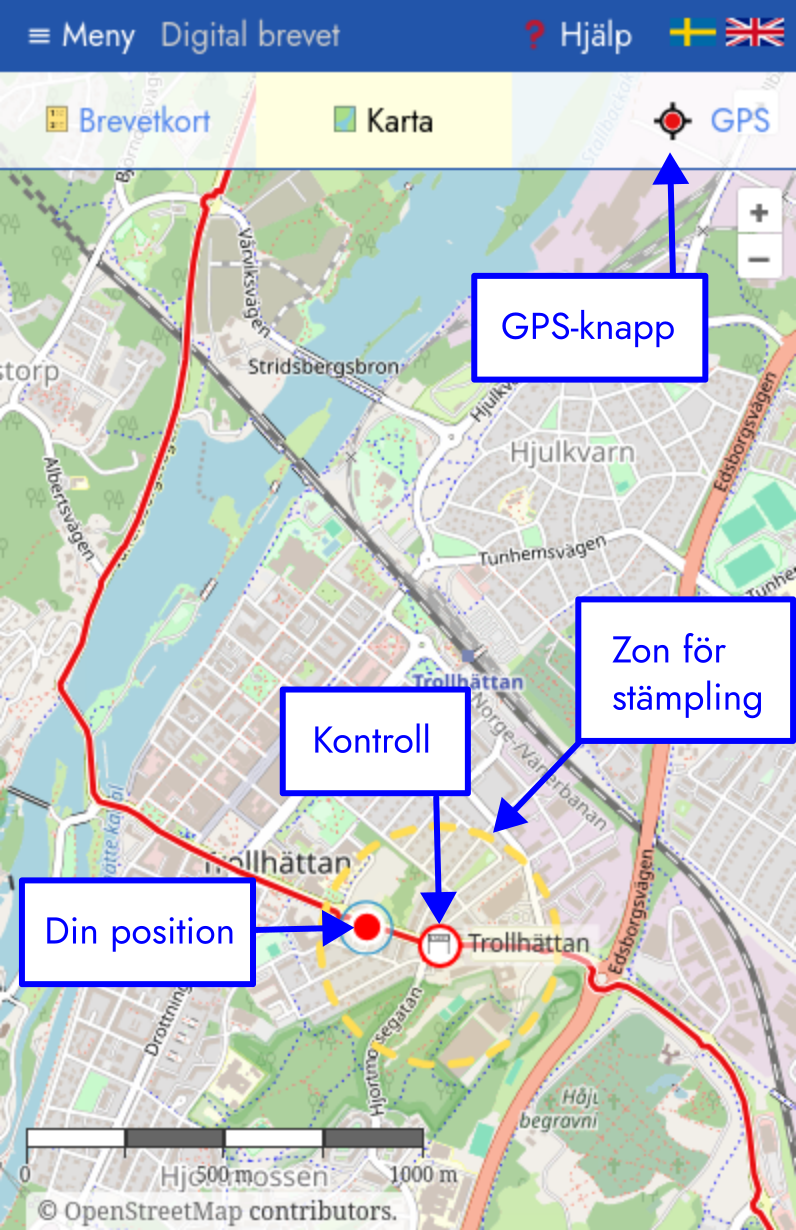
Under fliken "Karta" finns en karta över turen, med bana och kontroller. Varje kontroll har en stämpelzon, som du behöver befinna dig inom för att stämpla. Den visas på kartan med en streckad gul gräns. Du kan också använda kartan för att kontrollera att mobilen hittat din position korrekt. När en GPS-position finns kommer din position visas på kartan som en röd cirkel med vit kant. Om du är i rörelse kommer den visas som en pil i rörelseriktningen.
GPS-knapp
Längst upp till höger finns en GPS-knapp. När den lyser rött finns en GPS-position. När du trycker på GPS-knappen zoomar kartan till nuvarande position. Du behöver normalt inte göra någonting för att få aktuell position, men när du trycker på GPS-knappen hämtas också en ny position. Det kan vara användbart om du kommit från en plats med dålig GPS-mottagning till en med bra, till exempel från inomhus till utomhus.
Stämpling utan internetanslutning
Du kan stämpla utan internetanslutning, så länge du kan få upp appen i din webbläsare. Om du inte har internetuppkoppling kommer stämplingar sparas i webbläsaren tills de kan rapporteras. Appen försöker synkronisera med jämna mellanrum när den är i förgrunden. Du kan också trycka på knappen "Synkronisera", som visas när det finns stämplingar att rapportera.
Om något går fel
Kontrollera först att du har tillåtit delning av plats. Du kan behöva läsa om appen för att det ska ha effekt.
Vissa webbläsare kan visa felaktig position innan en ny finns. Om du inte får upp korrekt position, låt appen ligga framme några minuter. Tryck vid behov på GPS-knappen för att hämta GPS-position på nytt. Vid problem, använd ett ställe med bra GPS-mottagning, till exempel utomhus.
Om webbläsarens GPS-tjänst fortfarande inte fungerar, kan du behöva starta om webbläsaren. Du kan också kopiera länken till ditt brevetkort och öppna i en annan webbläsare.
Ett annat sätt att få korrekt GPS-position i webbläsare är att först starta en annan app som använder GPS, till exempel Google Maps, Strava, RideWithGPS eller liknande. Därefter kan du prova att öppna brevetkortet igen.
Om du inte kan stämpla i appen
Om du inte kan stämpla för att GPS:en eller internet inte fungerar, kan du ta en bild på dig själv vid något som visar var du är, och ladda upp i efterhand genom att välja Meny → Rapportera fotostämpling. Om din mobil inte fungerar alls kan någon annan fotostämpla åt dig, eller stämpla åt dig i appen. Vilka metoder för stämpling som är godkända bestäms av varje arrangör.
Stämpla åt andra deltagare
Har någon deltagare problem att stämpla? Om du är på en kontroll, kan du kan hjälpa till genom att rapportera att en annan deltagare också befinner sig på kontrollen. Gå till ditt digitala stämpelkort och välj Meny → Stämpla åt annan deltagare.
Rapport position eller DNF
Vill du rapportera din position, även om du inte stämplar på en kontroll? Klicka på Meny → Rapportera position. Du kan också skicka med ett meddelande. Det kan vara användbart till exempel för personer som följer hur det går för dig på turen.
Behöver du avbryta turen? Klicka på Meny → Rapportera DNF för att skicka en rapport till arrangörerna att du bryter. Du kan också skicka med ett meddelande.